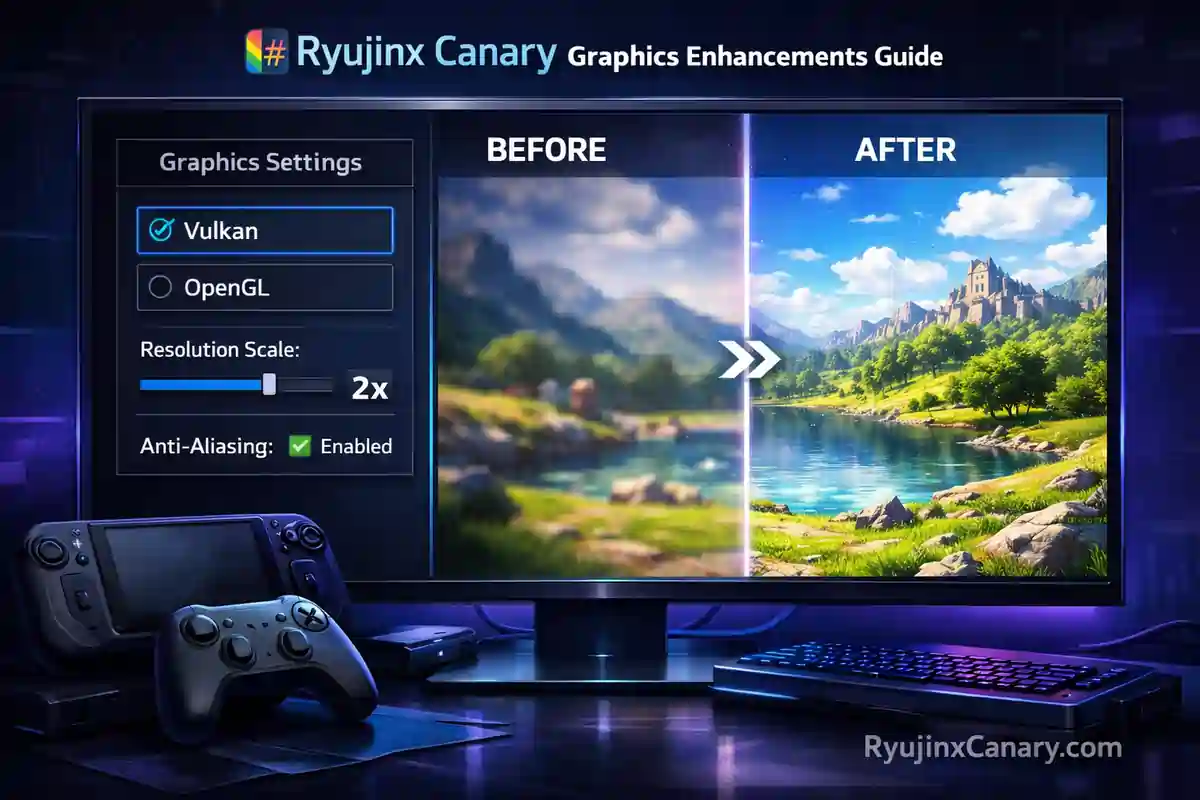
Ryujinx Canary delivers strong visual performance for Nintendo Switch games on PC and handhelds. With the right settings, you can enjoy sharper images, smoother gameplay, and fewer visual glitches. This guide explains practical ways to improve graphics in the latest Canary builds.
Choosing the Right Graphics Backend
The most important setting in Ryujinx Canary is the graphics backend. You can choose between Vulkan and OpenGL.
- Vulkan usually gives better speed and higher frame rates on modern GPUs. Most users should start with Vulkan.
- OpenGL often provides more stability. Many players switch to OpenGL when they face shader compilation stuttering or crashes.
To change it:
- Open Ryujinx Canary.
- Go to Options → Settings → Graphics.
- Select your preferred backend from the dropdown.
- Click Apply and restart the emulator.
Test both options with your game. Some titles run better on Vulkan, while others feel smoother on OpenGL. See the Ryujinx Canary vs Ryujinx comparison to learn how these graphics backends affect each version.
Resolution Scaling and Visual Quality
Increasing internal resolution makes games look much sharper than on the original Switch.
In the Graphics settings:
- Raise the Resolution Scale (try 2x or 3x for good results).
- Higher values need a stronger GPU.
For texture quality, use Anisotropic Filtering when available. This makes distant textures clearer and reduces blurriness.
Also Read > How to Play Tomodachi Life: Living the Dream on PC with Ryujinx
Shader Cache and Stuttering Fixes
Shader stutter is a common issue in Canary builds. The emulator compiles shaders the first time you play.
Tips to reduce stutter:
- Play through demanding areas once to build the cache.
- Clear the shader cache if you notice problems after updates (found in Cache Management).
- Use OpenGL if Vulkan causes long loading pauses.
For more solutions, visit the troubleshooting page.
Also Read > Ryujinx vs Yuzu vs Eden: Best Nintendo Switch Emulators
Best Settings for Different Devices
Steam Deck Users
- Use the x64 AppImage version.
- Start with Vulkan for most games.
- Switch to OpenGL if you see grass glitches or texture problems (common in games like Tomodachi Life). – Check the Tomodachi Life patch notes for known issues and fixes.
- Run in Desktop Mode first to test settings before adding to Steam.
Windows PCs
- NVIDIA and AMD GPUs work great with Vulkan.
- Update your GPU drivers regularly for best results.
- High-end PCs can use 3x or higher resolution scaling with minimal issues.
Low-End PCs
- Lower the resolution scale to 1.5x or 2x.
- Use OpenGL for better stability.
- Close background programs to free up GPU power.
macOS Users
- Apple Silicon Macs use Metal support in newer builds for good performance.
Also Read > Ryujinx PC Setup Guide
Fixing Common Graphics Problems
| Problem | Solution |
|---|---|
| Black Screen or Crashes | Switch between Vulkan and OpenGL. Clear the shader cache. Update your firmware and keys. |
| Texture Glitches or Flickering | Try using OpenGL. Lower the resolution scale for a while. Restart the emulator. |
| Low FPS | Reduce the resolution scale. Turn off extra effects. Update your GPU drivers. |
| Low GPU Usage | Check whether the game is running in Handheld or Docked mode. Docked mode usually gives better performance. You can also try fullscreen mode instead of windowed mode. |
Read the Ryujinx stable vs Canary performance analysis for a detailed performance comparison.
Final Optimization Tips
Always download the latest Canary build from the official Ryubing releases. Newer versions often include graphics improvements and bug fixes.
Also Read > Ryujinx Canary Safe Download 2026 – Official Guide
Keep your system updated:
- Fresh GPU drivers
- Correct firmware version (22.0.0 or higher)
- Proper prod.keys
For Steam Deck users, adding the AppImage directly to Steam helps with better performance in Gaming Mode.
Improving graphics in Ryujinx Canary takes some testing. What works best depends on your hardware and the specific game. Start with Vulkan, switch to OpenGL when needed, and adjust resolution based on your GPU power.
With these settings, most users see noticeable improvements in clarity and smoothness. Take time to experiment with each game. The results are often worth it.