Ryujinx Canary
Canary version 1.3.330 | Stable version 1.3.3
Ryujinx Canary is a modern, open-source Nintendo Switch emulator. It offers smooth performance and strong compatibility. Developed by the Ryujinx team, it is distributed through Ryubing. Fast updates, stability, and advanced features make it popular with gamers. The Canary version gives users early access to improvements before stable releases.
Ryujinx translates Nintendo Switch system functions for modern hardware. This lets users enjoy Switch games on many devices. It is available on Windows, Linux, and macOS. However, the original Ryujinx team has not released an official Android version. You can check this guide to learn How to Play Tomodachi Life on iPad.
This emulator has useful Features such as Vulkan and OpenGL support. It allows Controller Customization, DLC, update support, mod compatibility, higher resolutions and frame rates than the original console. Ryujinx Canary is lightweight and beginner-friendly, providing a reliable gaming experience for all users.
Software is generally considered Safe if downloaded from trusted sources. However, on the internet, many fake websites distribute modified files or malware.
Therefore, to stay safe and receive authentic updates, users should Download Ryujinx Canary exclusively from the Official Website: RyujinxCanary.com.
Also Read > Ryujinx vs Yuzu vs Eden: Best Nintendo Switch Emulators
What is Ryujinx Canary?
Ryujinx Canary has become very popular recently. It is an experimental version of the open-source Ryujinx Nintendo Switch emulator.
It is designed for users who want the latest features, faster updates, and better game compatibility. The Ryujinx team develops the emulator, and it is distributed through Ryubing.
For more details, check the Ryujinx Canary vs Ryubing comparison. It explains the main differences in simple terms.
It supports Windows, Linux, and macOS, with no Android version. Ryujinx Canary recreates Nintendo Switch functions on modern hardware, letting users play their legally dumped Switch games on compatible devices.
It features Vulkan and OpenGL graphics support, along with a wide range of other features such as higher resolutions, smoother frame rates, DLC, mods, and controller customization.
Many players also use graphics enhancements. These settings improve visual quality and make games look better than the original hardware.
Canary builds are updated more frequently compared to Stable builds, but they may occasionally contain bugs or temporary issues. Furthermore, many gamers use Ryujinx Canary because it delivers strong performance and supports thousands of games.
How Ryujinx Canary Works
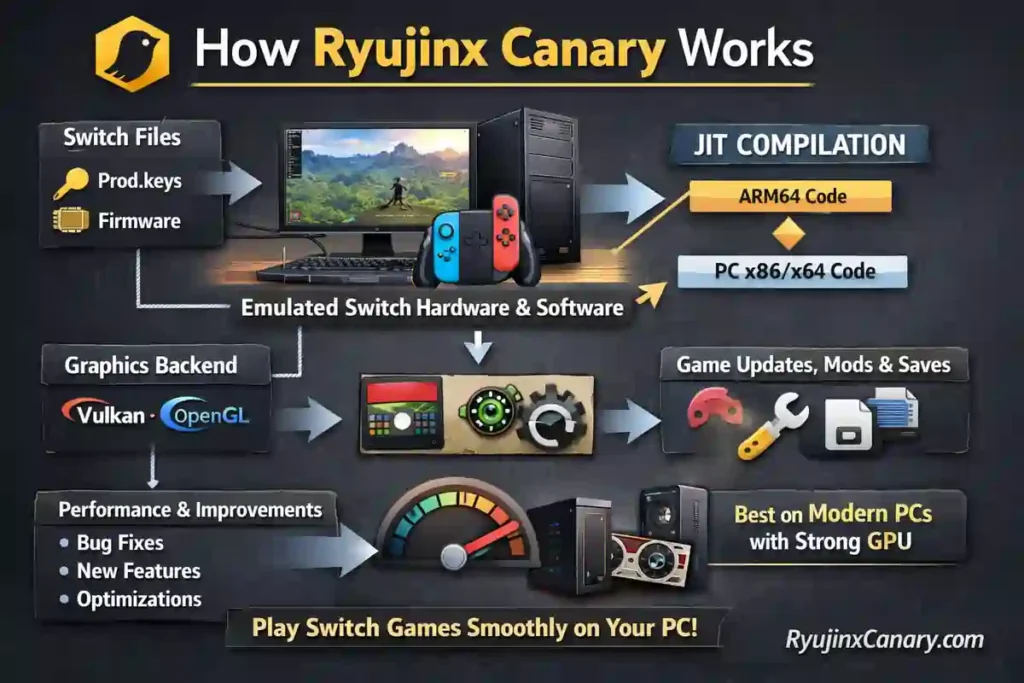
Ryujinx Canary is the experimental version of the Ryujinx Nintendo Switch emulator. It gets updates very often, making it a popular choice for users who want the latest features and fixes.
It copies Nintendo Switch hardware and software on a Windows PC. If you are new to Ryujinx PC setup guide will help you with the full installation process. It explains each step in a simple way. It uses prod.keys and firmware to load and run Switch games. You can learn more about these important files in the Ryujinx prod keys guide. It explains everything in a simple and easy way.
Ryujinx Canary changes Switch ARM64 game code into PC x86/x64 code using JIT compilation. It uses Vulkan or OpenGL for better graphics and smoother performance.
The emulator also supports game updates, mods, and save files automatically. New updates bring bug fixes, better performance, and new features.
Ryujinx Canary works best on modern PCs with a good graphics card. In short, Ryujinx Canary helps you play Nintendo Switch games smoothly on your PC.
Ryujinx Canary Features
Frequent Updates
Ryujinx Canary gets updates very often. New features, bug fixes, and game improvements arrive faster than the Stable version.
High Game Compatibility
The emulator supports thousands of Nintendo Switch games. Many popular games run smoothly with good speed and stability.
Better Graphics Support
Ryujinx Canary supports Vulkan, OpenGL, and Apple Metal graphics APIs. This improves visual quality and gives smoother gameplay.
Fast Performance
The emulator uses advanced CPU emulation for faster loading times and better FPS. Many games can run better than on original hardware.
Cross-Platform Support
Ryujinx Canary works on Windows, Linux, and macOS. It also supports Steam Deck and Apple Silicon Macs. Android community ports are also available.
Mods and DLC Support
Players can install mods, updates, DLC files, and cheats easily. Everything can be managed from the emulator menu.
Custom Controls
The emulator supports Xbox, PlayStation, and other controllers. Users can customize buttons and control layouts in the input settings.
Simple Interface
Ryujinx Canary has a clean and beginner-friendly interface. It makes setup and game management easy for new users.Ryujinx Canary has a clean and beginner-friendly interface. It makes setup and game management easy for new users.
Free and Open-Source
Ryujinx Canary is completely free to use. It is open-source and supported by a large community of developers and gamers.
Why You Need Ryujinx Canary
Ryujinx Canary is a great choice for playing Nintendo Switch games on PC. It receives updates very often.
Compared to the Stable version, Canary offers better game compatibility and improved performance. You can check the Ryujinx Canary vs Ryujinx comparison to see which version is better for your needs.
It also gets bug fixes faster and supports newer Nintendo Switch games earlier. If you want smoother gameplay and regular improvements, Ryujinx Canary is highly recommended.
How to Download Ryujinx Canary?
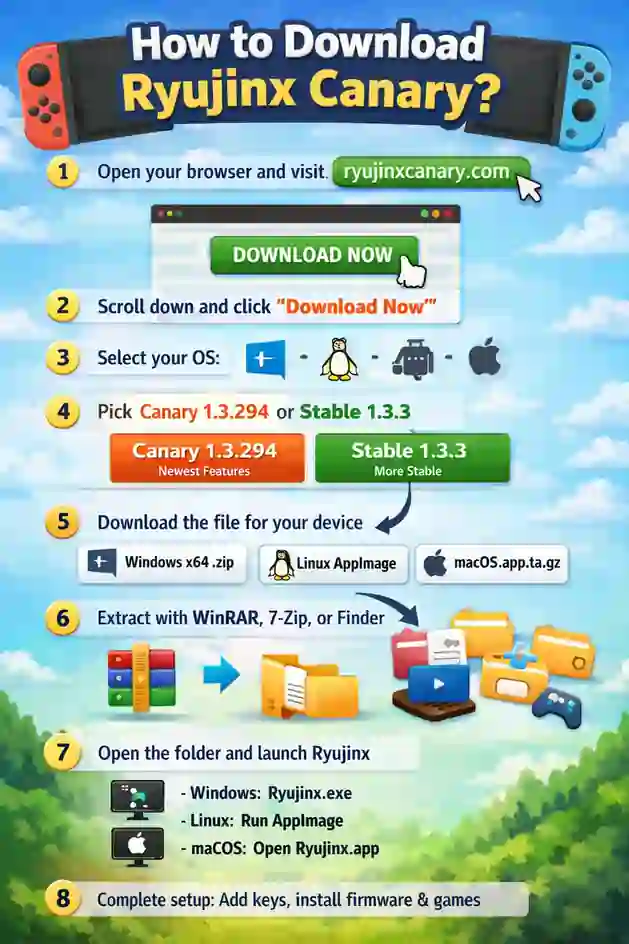
Downloading Ryujinx Canary is quick and easy. Follow these steps to get the latest version safely on your device.
- Open your browser and visit RyujinxCanary.com
- Scroll down and click the big “Download Now” button
- Scroll to your operating system (Windows, Linux, or macOS)
- Choose your version: Canary 1.3.330 (newest features) or Stable 1.3.3 (more stable)
- Click the correct download link for your device (Windows x64 .zip / Linux x64 AppImage or .tar.gz / macOS Universal .app.tar.gz)
- Save the file and extract it using WinRAR, 7-Zip, or the built-in extractor
- Open the extracted folder and launch Ryujinx (Windows: double-click Ryujinx.exe | Linux: run AppImage | macOS: open Ryujinx.app)
- Complete the first-time setup: Add keys, install firmware, and add game folders
How to Set Up Ryujinx Canary
Ryujinx Canary is an experimental version of the Ryujinx Nintendo Switch emulator. It provides users with faster updates, new features, and better game compatibility. If you follow every single step carefully, the setup process is quite simple.
This guide will be extremely helpful in installing and configuring Ryujinx Canary on Windows, Linux, macOS, and Steam Deck.
1. Download Ryujinx Canary
First of all, download the latest version of Ryujinx Canary from the Official Website: Ryujinxcanary.com.
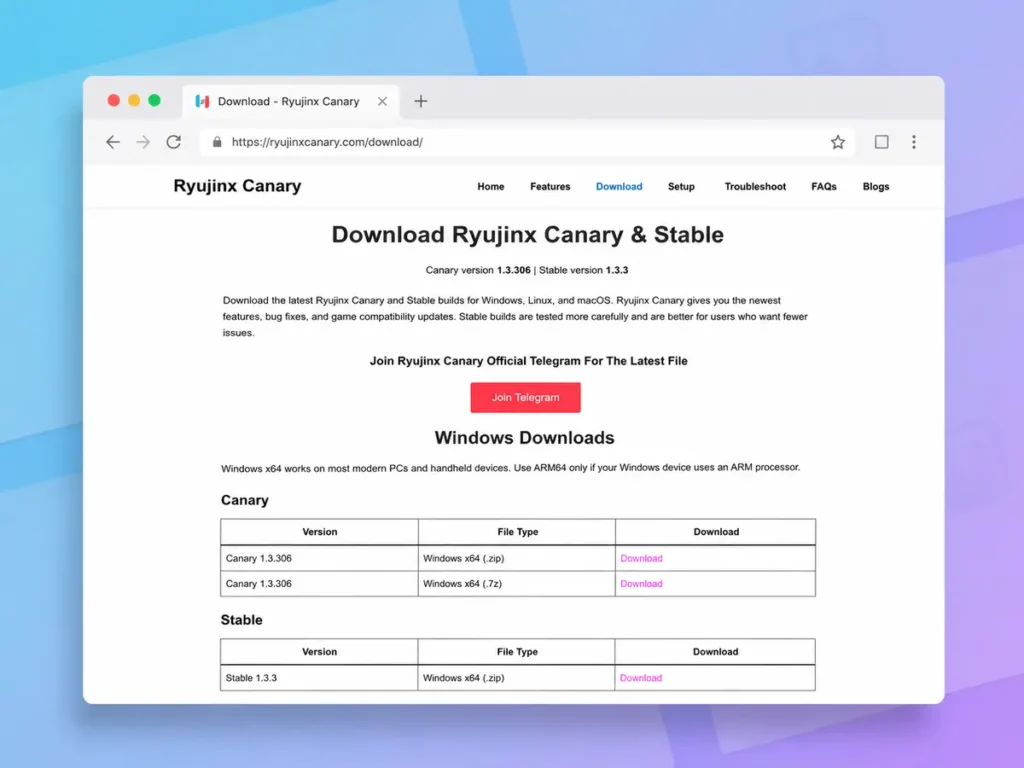
Choose the correct version for your system:
- Windows: Download the Windows x64 version for most PCs
- Linux: Download the Linux x64 build or AppImage
- Steam Deck: Use the Linux x64 AppImage
- macOS: Download the universal macOS build for Intel and Apple Silicon Macs
After downloading:
- Extract the .zip or .tar.gz file
- Save it in an easy-to-access folder
- Avoid protected folders like Program Files
Linux users who are using AppImage must make the file executable before launching it.
2. Open Ryujinx Canary
Now, launch the emulator.
- Windows: Open Ryujinx.exe
- Linux: Run the extracted file or AppImage
- macOS: Open Ryujinx.app
macOS users may need to right-click the app and select Open the first time.
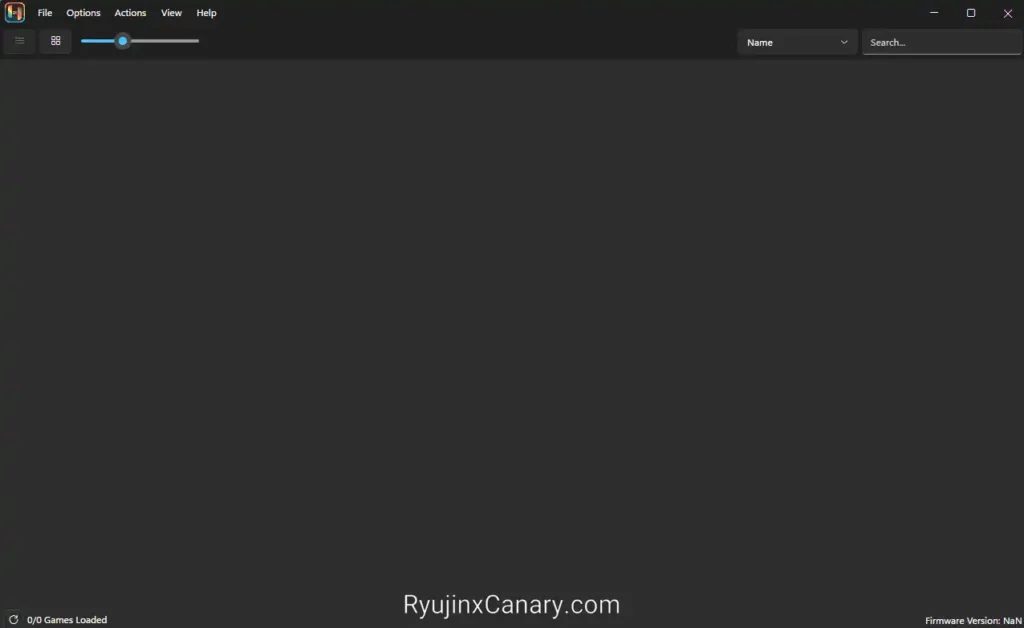
Some Windows users may encounter a .NET Desktop Runtime message. If necessary, install the required version from Microsoft, or download it from the link provided below.
After the first launch, Ryujinx will automatically create its folders.
3. Install Product Keys
Let me inform you that product keys are required to run Nintendo Switch games and firmware.
Steps:
- Open Ryujinx Canary
- Go to File → Open Ryujinx Folder
- Open the system folder
- Copy prod.keys and title.keys into the folder
After adding the keys, restart the emulator.
Some builds also include:
Tools / Actions → Install Keys
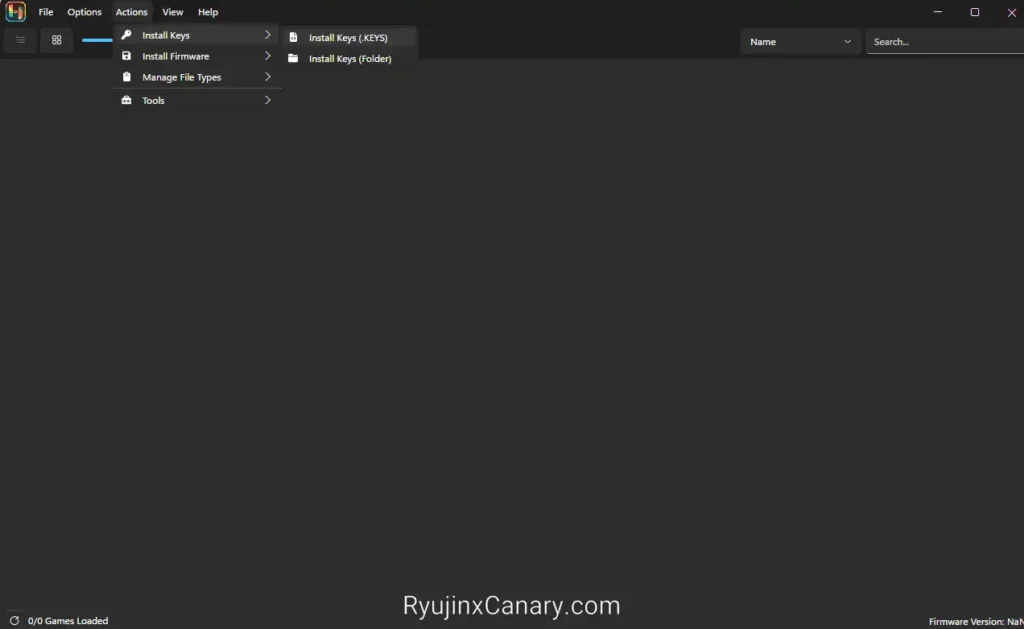
With the help of this option, you can directly install keys.
4. Install Firmware
Firmware is important for many Nintendo Switch games.
To install firmware:
- Open Tools / Actions → Install Firmware
- Select your firmware .zip, folder, or .xci file
- Confirm the installation
- Restart the emulator if asked
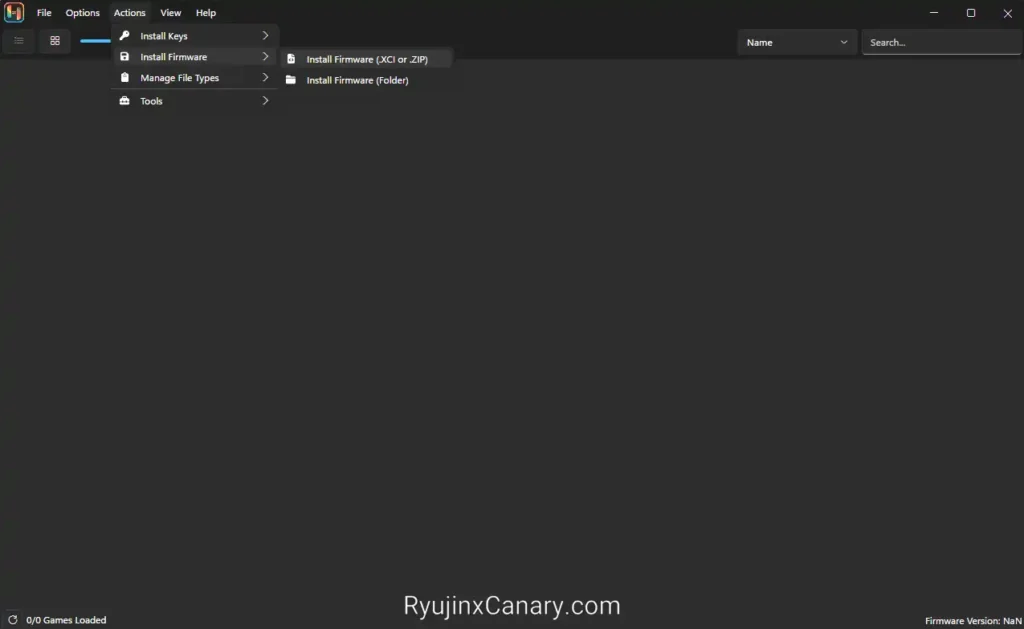
After the installation is complete, you will see a success message.
5. Add Game Folders
Now, you will need to add your Nintendo Switch games to the game directory. You can follow this guide to learn how to add games in Ryujinx step by step.
Supported game formats include:
- .nsp
- .xci
- .nca
Steps:
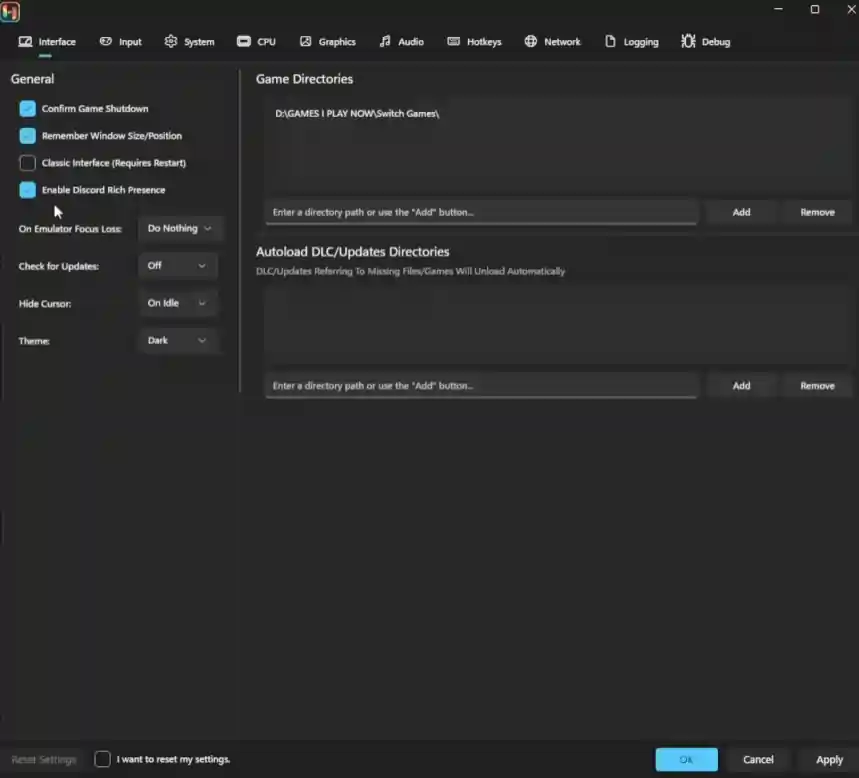
- Go to Options → Settings
- Open Game Directories
- Click Add
- Select your game folder
- Click Apply and OK
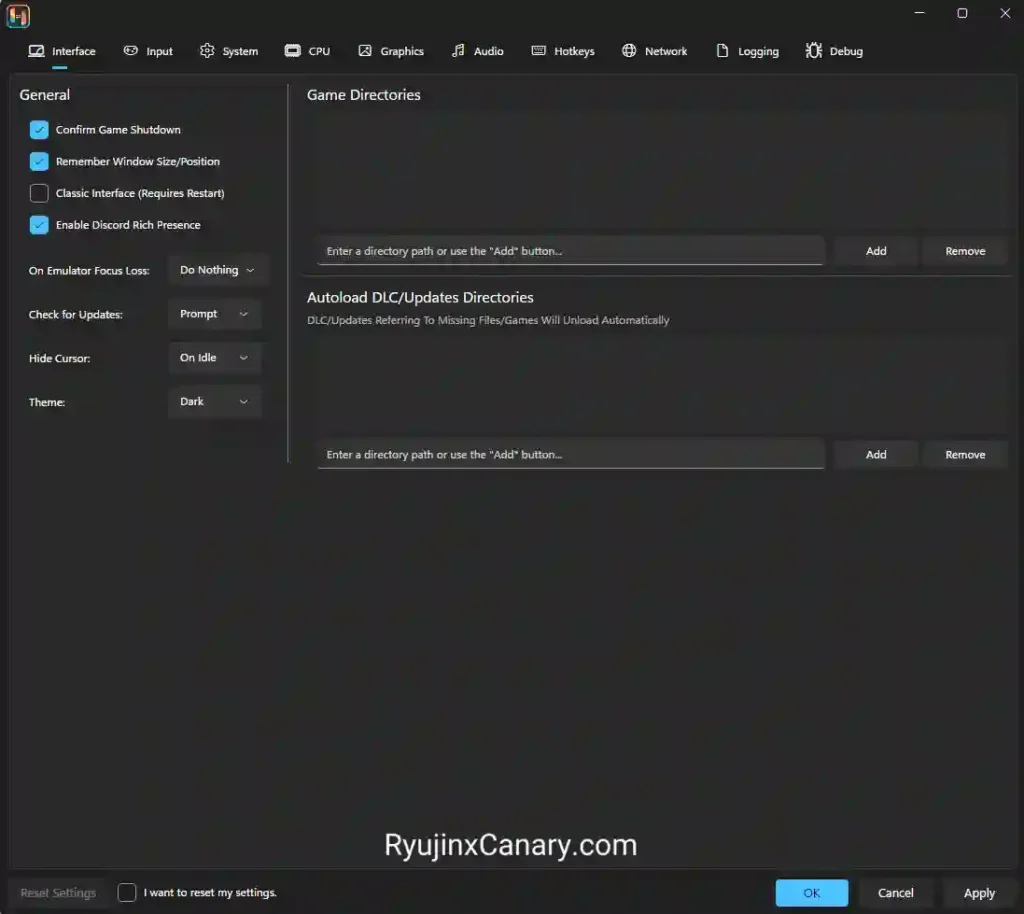
Ryujinx Canary will scan the folder automatically. Your games will appear in the main library. Check the Ryujinx Games Guide to see which games run best and get useful compatibility tips.
Also Read > How To Play Tomodachi Life: Living The Dream on PC Using Ryujinx (Guide)
6. Configure Your Controller
Ryujinx Canary supports many controllers.
Supported devices include:
- Xbox controllers
- PlayStation controllers
- Nintendo Switch Pro Controller
- Steam Deck controls
To configure controls:
- Open Options → Settings → Input
- Select Player 1
- Choose your controller
- Configure buttons if needed
- Click Save
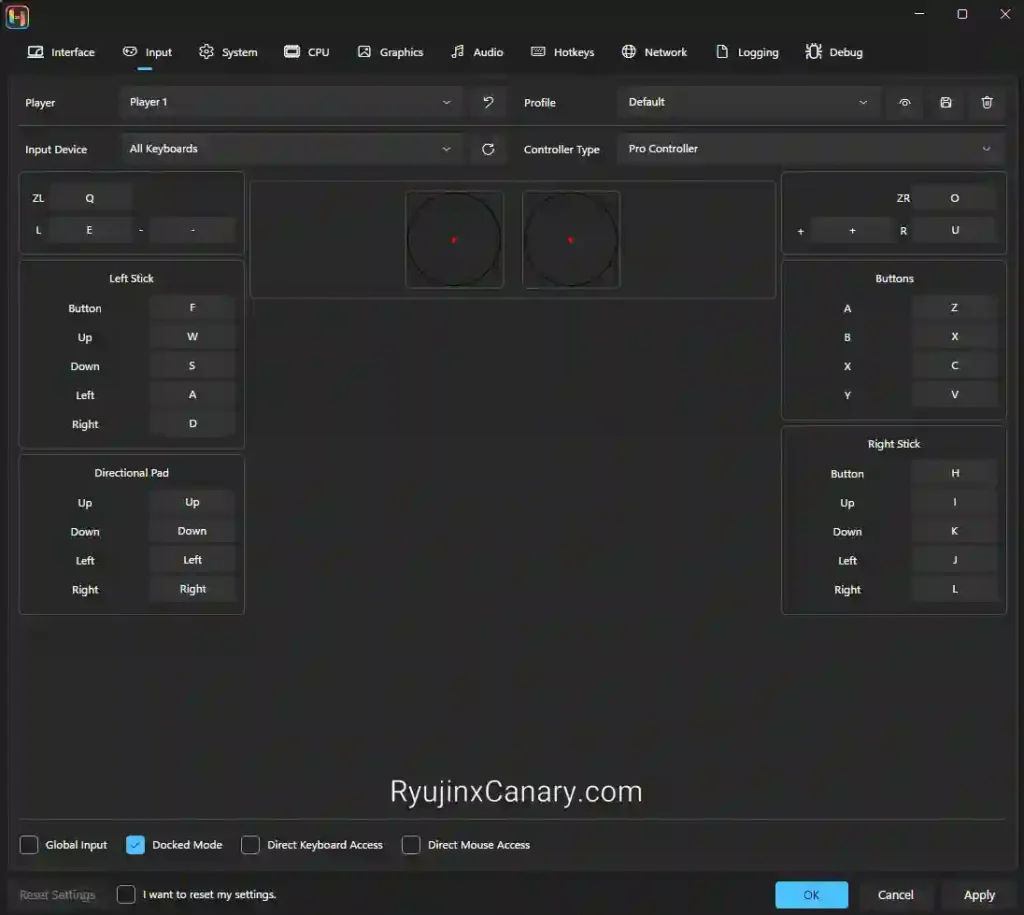
Steam Deck users can also add Ryujinx to Steam for better Gaming Mode support.
7. Launch Your Games
Now, all your games will appear in the emulator library.
- To launch the game, you need to double-click on it.
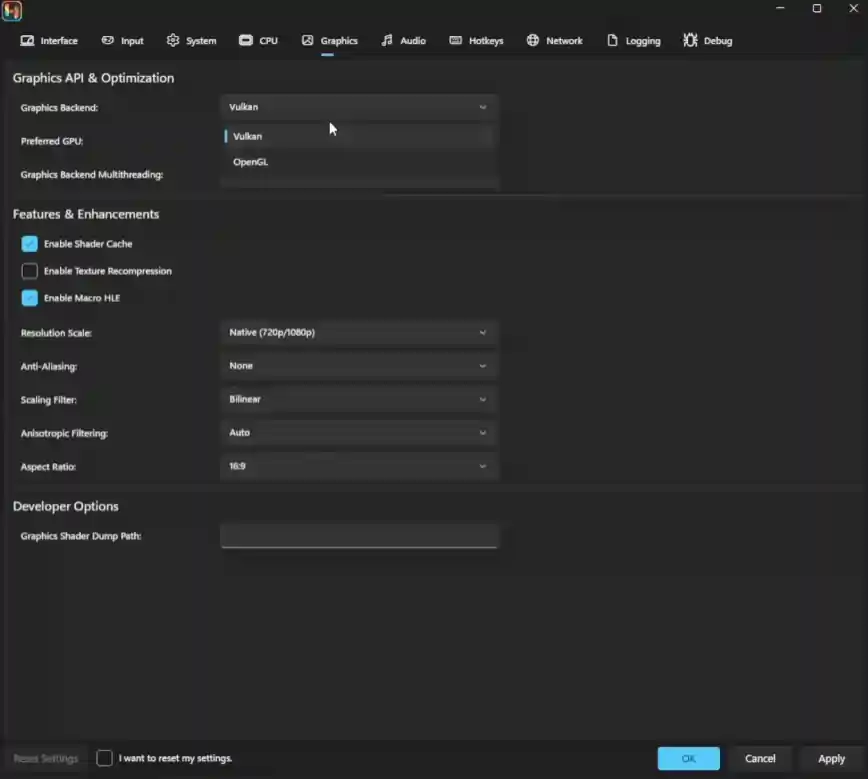
- Use Vulkan graphics for better performance on most systems.
- OpenGL may work better on older hardware.
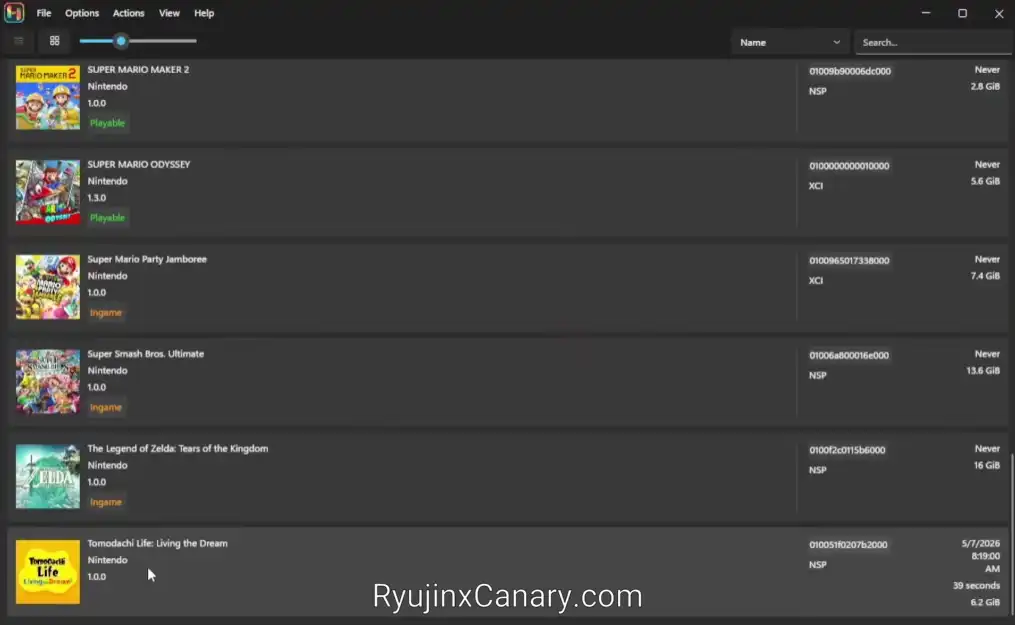
You can adjust the graphics, resolution, and controller settings according to your preferences at any time. If you face any issues, check the troubleshooting page for simple fixes and solutions.
Quick Tips
- Use at least 8GB RAM
- Keep graphics drivers updated.
- Use the latest firmware and keys.
- Keep Ryujinx Canary updated
- Use Vulkan when possible for smoother gameplay.
Safety Warning
Always download Ryujinx Canary from official Ryubing releases or trusted websites like ryujinxcanary.com.
On the internet, numerous fake websites may provide you with modified files or malware. Downloading from official sources ensures that your device remains completely safe and that you receive the latest, genuine updates.
Pros and Cons
Pros
- Gets frequent updates with new features and fixes
- Better support for newer Nintendo Switch games
- Improved performance and graphics settings
- Strong mod support for many games
- Faster bug fixes than the Stable version
Cons
- Can be less stable than the main version
- Some games may crash or show glitches
- Requires updates more often
- New builds may contain bugs
- Not the best choice for users who want maximum stability
Best Settings for Better Performance
These settings can help you get better FPS and smoother gameplay in Ryujinx Canary. You can use them as global settings. Change them for some games if needed.
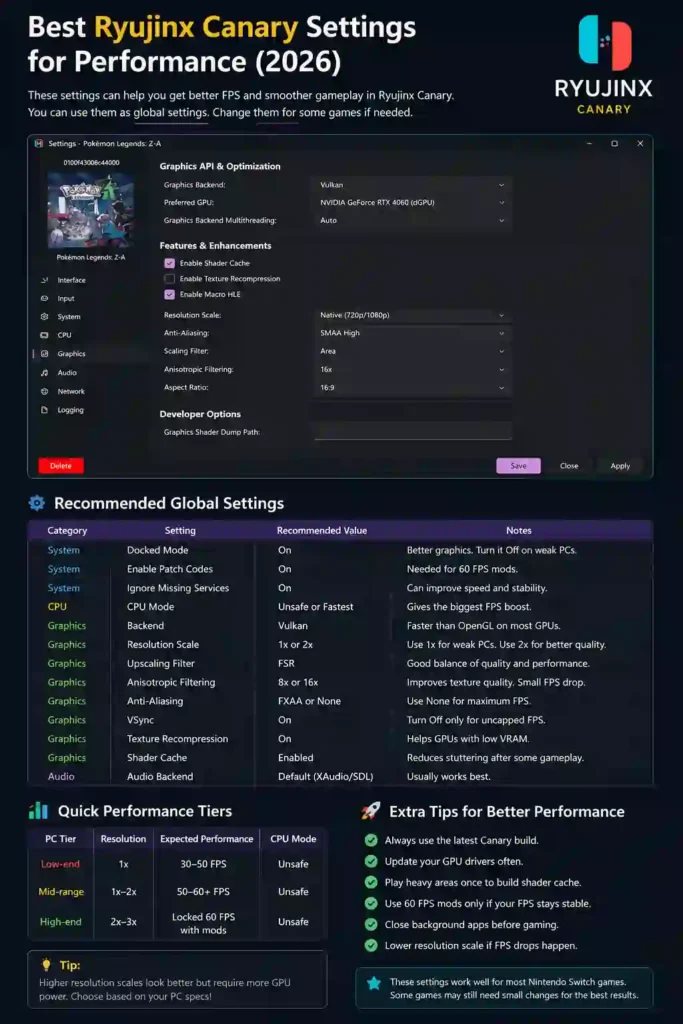
Recommended Global Settings
| Category | Setting | Recommended Value | Notes |
|---|---|---|---|
| System | Docked Mode | On | Better graphics. Turn it Off on weak PCs. |
| System | Enable Patch Codes | On | Needed for 60 FPS mods. |
| System | Ignore Missing Services | On | Can improve speed and stability. |
| CPU | CPU Mode | Unsafe or Fastest | Gives the biggest FPS boost. |
| Graphics | Backend | Vulkan | Faster than OpenGL on most GPUs. |
| Graphics | Resolution Scale | 1x or 2x | Use 1x for weak PCs. Use 2x for better quality. |
| Graphics | Upscaling Filter | FSR | Good balance of quality and performance. |
| Graphics | Anisotropic Filtering | 8x or 16x | Improves texture quality. Small FPS drop. |
| Graphics | Anti-Aliasing | FXAA or None | Use None for maximum FPS. |
| Graphics | VSync | On | Turn Off only for uncapped FPS. |
| Graphics | Texture Recompression | On | Helps GPUs with low VRAM. |
| Graphics | Shader Cache | Enabled | Reduces stuttering after some gameplay. |
| Audio | Audio Backend | Default (XAudio/SDL) | Usually works best. |
Quick Performance Tiers
| PC Tier | Resolution | Expected Performance | CPU Mode |
|---|---|---|---|
| Low-end | 1x | 30–50 FPS | Unsafe |
| Mid-range | 1x–2x | 50–60+ FPS | Unsafe |
| High-end | 2x–3x | Locked 60 FPS with mods | Unsafe |
Extra Tips for Better Performance
- Always use the latest Canary build.
- Update your GPU drivers often.
- Play heavy areas once to build shader cache.
- Use 60 FPS mods only if your FPS stays stable.
- Close background apps before gaming.
- Lower resolution scale if FPS drops happen.
These settings work well for most Nintendo Switch games. Some games may still need small changes for the best results.
Ryujinx Canary: Device-Specific Tips
| Device Type | Resolution | CPU Mode | Backend | Best Settings | Expected FPS |
|---|---|---|---|---|---|
| Low-End PC | 1x | Unsafe | Vulkan | FSR ON, Texture Recompression ON, No AA | 25–45 |
| Mid-Range PC | 1x–2x | Unsafe | Vulkan | FSR, 8x AF, FXAA | 50–60+ |
| High-End PC | 2x–3x | Unsafe | Vulkan | FSR, 16x AF, Mods ON | 60+ |
| Steam Deck | 0.75x–1x | Unsafe | Vulkan | Desktop Mode, TDP 12–15W | 30–50 |
| Laptop | 1x–2x | Unsafe | Vulkan | Use Charger and High Performance Mode | Varies |
Quick Tips
- Use the latest Canary version.
- Vulkan + Unsafe gives the best performance.
- Build shader cache before long gameplay.
- Low-end PCs should focus on FPS first.
- Lower resolution if games lag.
- Close background apps for better speed.
Ryujinx Canary Troubleshooting
You may occasionally encounter errors in Ryujinx Canary, as it is an experimental Nintendo Switch emulator. However, most of these issues can be easily resolved.
Common Fixes
- If the emulator is not opening, install the latest .NET Desktop Runtime.
- For better graphics performance, you will need to update your GPU drivers.
- To fix “Missing keys” errors, place the prod.keys and title.keys files inside the system folder.
- If no games are appearing, please add the correct game folder to the Game Directories.
- To fix black screens and crashes, you will need to switch between Vulkan and OpenGL.
- For the Steam Deck, you should use only the Linux x64 build.
- Make sure to restart Ryujinx Canary after installing the firmware or keys.
- If games are stuttering or crashing, clear the shader cache.
Many users in 2026 prefer Canary. It usually offers better speed and compatibility. Check the Ryujinx stable vs Canary performance guide to understand the main differences between both versions.
Is Ryujinx Canary Safe?
Ryujinx Canary is usually safe if you download it from the official website, ryujinxcanary.com.
It is open-source software. Trusted developers maintain it regularly. There were no major virus or malware reports in 2026. The biggest risk is legal. Using illegal game files can cause problems.
For better safety:
- Download only from the official website
- Avoid fake or third-party websites
- Scan files with antivirus software
Ryujinx Canary is technically safe when used correctly. Always use official downloads. Understand the legal risks before using it.
Ryujinx Canary vs Ryujinx Stable
| Feature | Ryujinx Canary | Ryujinx Stable |
|---|---|---|
| Updates | Very frequent | Less frequent |
| New Game Support | Better | Slower |
| Stability | Can have bugs | More stable |
| Performance | Usually faster | Older optimizations |
| Bug Fixes | Faster fixes | Slower fixes |
| Best For | Advanced users | Casual users |
| Crash Risk | Higher | Lower |
Simple Summary
| Choose Ryujinx Canary If You Want | Choose Ryujinx Stable If You Want |
|---|---|
| Latest features | Fewer crashes |
| Better support for new games | Better stability |
| Faster updates | A simpler experience |
| Better performance | More reliable daily use |
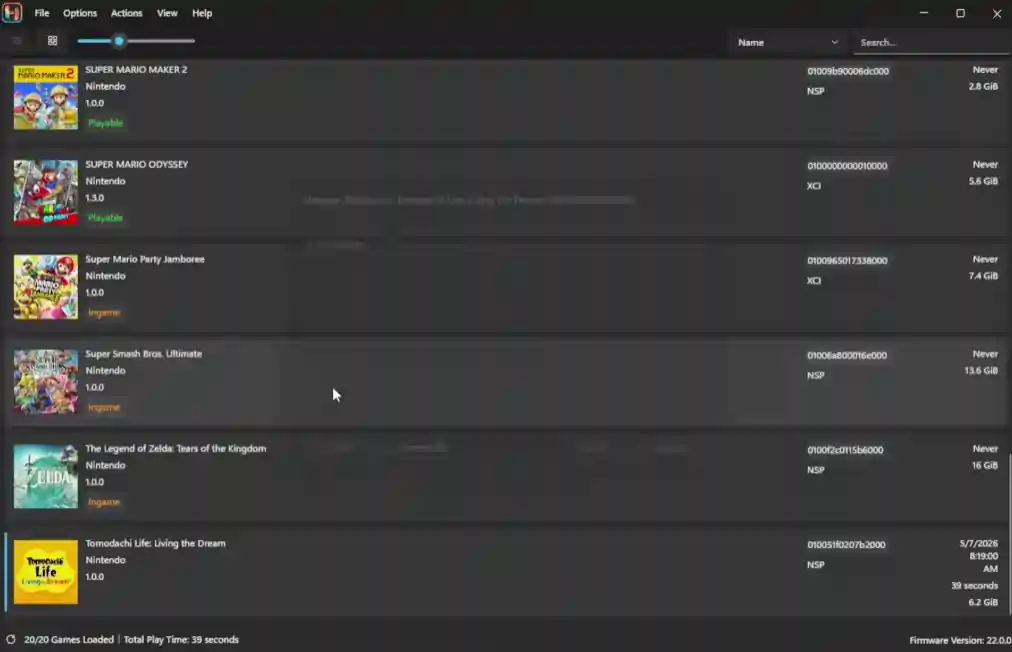
Ryujinx Canary Images
FAQs
Is Ryujinx Canary free?
Yes. Ryujinx Canary is a free and open-source Nintendo Switch emulator.
Which devices support it?
It works on Windows, Linux, macOS, and Steam Deck. Some Android ports are also available.
Why are my games missing?
Add your game folder in Options → Settings → Game Directories.
Is Ryujinx Canary safe?
Yes, but only download it from trusted websites like ryujinxcanary.com.
Which graphics setting is best?
Vulkan gives better performance on most modern PCs. OpenGL may work better on older hardware or unsupported GPUs.
Ryujinx Canary
Download Ryujinx Canary for Windows, Linux, Steam Deck, and macOS. Get the latest Canary and Stable builds, setup guides, troubleshooting tips, and Nintendo Switch emulator support.
Price Currency: $
Operating System: Windows, Linux, macOS
Application Category: Game
4.8