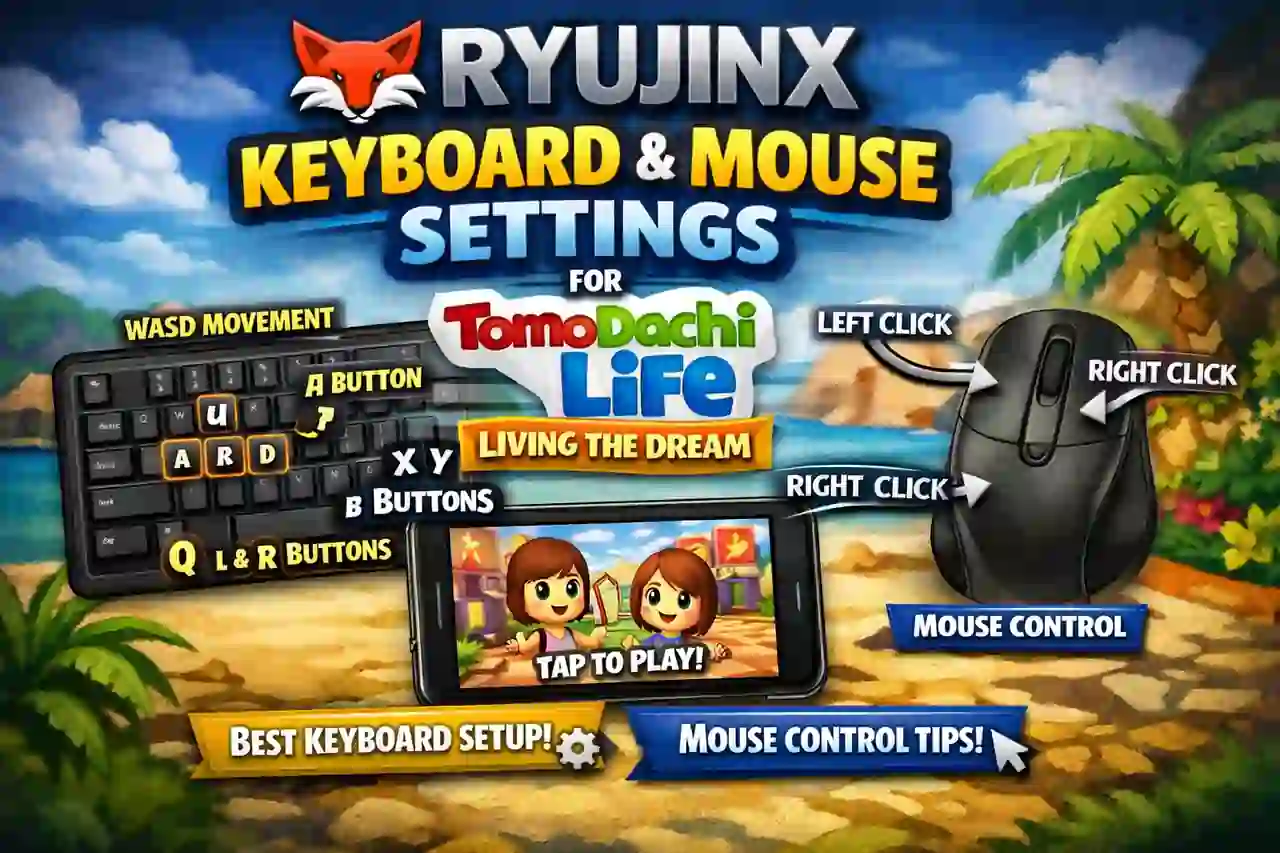
Playing Tomodachi Life: Living the Dream on Ryujinx can be a fun experience on PC. Since the game was designed for Nintendo Switch controls, keyboard and mouse users need to set up the controls correctly.
A good keyboard layout makes menus easier to use and improves overall gameplay. This guide explains the best Ryujinx keyboard and mouse settings for Tomodachi Life: Living the Dream.
Also Read > Ryujinx Canary vs Ryujinx
Best Ryujinx Keyboard Settings for Tomodachi Life
Ryujinx allows you to customize keyboard controls through the input settings. The goal is to make the keyboard feel similar to a normal Switch controller. For a complete walkthrough on setting up all input devices, check the input settings guide.
Recommended setup:
| Switch Control | Keyboard Key |
|---|---|
| Left Stick Up | W |
| Left Stick Down | S |
| Left Stick Left | A |
| Left Stick Right | D |
| A Button | J |
| B Button | K |
| X Button | U |
| Y Button | I |
| L Button | Q |
| R Button | E |
| ZL Button | Left Shift |
| ZR Button | Space |
| Plus Button | Enter |
| Minus Button | Backspace |
| Home Button | H |
| Capture Button | P |
This layout keeps the main buttons close together. It also makes navigation faster.
Also Read > How to Play Tomodachi Life: Living the Dream on PC with Ryujinx
Mouse Settings for Ryujinx
Tomodachi Life does not heavily depend on mouse controls. Most actions work better with keyboard input.
However, you can use the mouse for pointer-based actions if needed.
Recommended mouse setup:
| Action | Mouse Control |
|---|---|
| Touch Input | Left Click |
| Camera / Pointer Movement | Mouse Movement |
| Confirm Action | Left Click |
| Cancel | Right Click |
If mouse input feels strange, using keyboard controls is usually smoother.
How to Change Keyboard Controls in Ryujinx
Follow these steps:
Step 1: Open Ryujinx
Start Ryujinx on your PC.
Make sure Tomodachi Life: Living the Dream is added to your game list. If you need help adding games, follow this tutorial on how to add games in Ryujinx.
Step 2: Open Input Settings
Go to:
Options → Settings → Input
Select the player profile you want to edit.
Step 3: Choose Keyboard
Change the controller type to keyboard.
Select each button and assign your preferred keys.
Step 4: Save Settings
Save the controller profile.
Launch the game and test your controls.
If you encounter any issues during setup, the troubleshooting page has solutions for common problems.
Also Read > Ryujinx PC Setup Guide
Recommended Graphics Settings
Good controls are important, but graphics settings also affect the experience. For more optimization options, explore these Graphics Enhancements.
Recommended settings:
| Setting | Recommended Option |
|---|---|
| Graphics API | Vulkan |
| Resolution Scale | 1x or 2x |
| VSync | Enabled |
| Docked Mode | Optional |
| Shader Cache | Enabled |
Higher resolution can look better, but it requires stronger hardware.
Also Read > Ryujinx Crashing When Starting a Game? Here’s How to Fix It
Tips for Better Gameplay
- Keep important buttons close together.
- Avoid using too many keys for one action.
- Test controls before starting a long session.
- Save your Ryujinx profile after changes.
- Use lower graphics settings if performance drops.
- Make sure you have the latest game version by checking the Tomodachi Life patch notes.
Keyboard vs Controller
| Feature | Keyboard | Controller |
|---|---|---|
| Easy setup | Good | Excellent |
| Menu navigation | Good | Excellent |
| Comfort | Depends on user | Better for long play |
| Touch actions | Average | Better |
| Customization | High | Medium |
A controller usually feels more natural because Tomodachi Life was created for Switch controls. But a keyboard setup works well for PC players.
Also Read > Ryujinx Canary Cheats Guide: How to Install and Use Cheats
Final Thoughts
Ryujinx keyboard and mouse settings can make Tomodachi Life: Living the Dream playable on PC without a controller.
The best setup depends on your personal preference. A simple keyboard layout with nearby buttons gives the smoothest experience.
For most players, using WASD movement with nearby action keys is the easiest option. Adjust the settings until the controls feel comfortable. Before playing, ensure you have the correct prod keys installed and browse the Ryujinx games guide to see what other titles run well with keyboard controls.