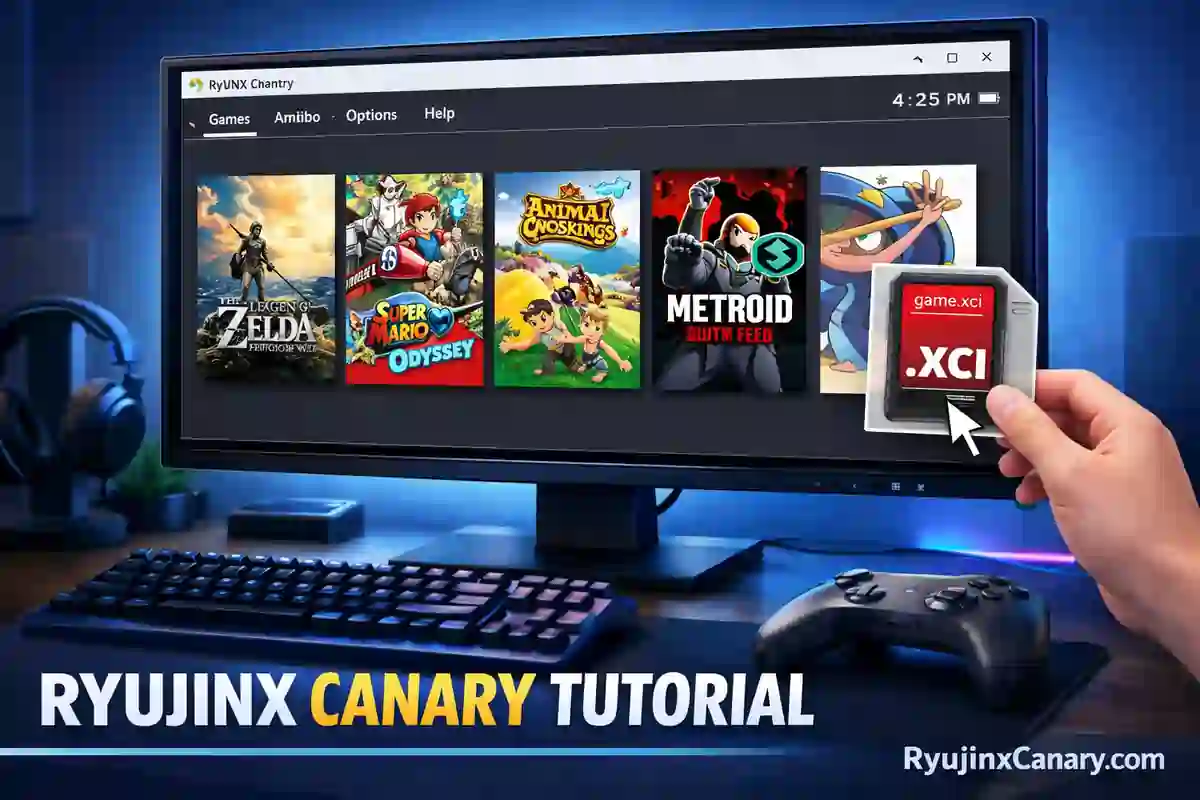
Ryujinx is a powerful Nintendo Switch emulator that lets you enjoy your favorite games on PC. When your games are added and organized properly, everything feels smoother and easier to manage. This guide walks you through the full process in simple, beginner-friendly steps.
We recommend using the latest Ryujinx Canary version from ryujinxcanary.com for the best performance and newest features.
Legal Note: You should only use games that you legally own. This guide is intended for users who dump their own Nintendo Switch games from their personal console.
Also Read > Ryujinx PC Setup Guide
System Requirements and Preparation
Before adding games, make sure you have:
- The latest Ryujinx Canary installed
- A working prod.keys file
- Firmware installed (version 18.0.0 or higher)
- Enough free storage space, since many games use 10–20 GB each
How to Add Games in Ryujinx
Adding games to Ryujinx is a quick and simple process once your emulator is fully set up. Ryujinx supports popular Nintendo Switch game formats such as .XCI and .NSP, allowing you to build and organize your game library easily on PC.
Before adding games, make sure you already have:
- Ryujinx installed
- A valid prod.keys file
- The latest Nintendo Switch firmware
- Legally dumped game files from your own console
Step 1: Prepare Your Game Files
Dump your Nintendo Switch games as .XCI or .NSP files using your own console.
Step 2: Add Games to Ryujinx
- Open Ryujinx Canary.
- Click File → Add Game Directory.
- Select the folder where your game files are stored.
- Click Select Folder.
Ryujinx will automatically scan the folder and add all supported games to your library.
You can also add a single game by dragging the .XCI or .NSP file directly into the Ryujinx window. Check the Ryujinx Games Guide for compatibility details and useful tips.
How to Manage Your Game Library
Ryujinx includes several helpful tools that make managing your game collection easy.
Organizing Games
- Right-click any game to rename it, hide it, or change its icon.
- Create folders to organize games by category, such as Action, Adventure, or Simulation.
Updating Games
- Right-click the game.
- Select Install Update.
- Choose the update file (
.nsp).
Ryujinx will apply the update automatically.
Installing DLC
Installing DLC works the same way as updates. Ryujinx supports multiple DLC files for supported games.
Ryujinx Game Management Features
| Feature | How to Use | Benefit |
|---|---|---|
| Add Game Directory | File → Add Game Directory | Adds multiple games at once |
| Install Update/DLC | Right-click game → Install File | Keeps games updated |
| Open Mods Directory | Right-click game → Open Mods Directory | Makes mod installation easier |
| Remove Game | Right-click → Remove | Cleans up your library |
| Rename / Edit Icon | Right-click → Edit | Helps keep games organized |
Best Settings for Smooth Gameplay
After adding your games, you can improve performance and graphics with a few simple settings. Many players also use graphics enhancements to improve visual quality.
- Right-click a game and open Properties.
- Set Resolution Scale to 2x or 3x for sharper graphics.
- Use the Vulkan backend for better performance on most PCs.
- Enable Disk Shader Cache to reduce loading times.
These settings work especially well with newer games like Tomodachi Life: Living The Dream.
Also Read > How to Play Tomodachi Life: Living the Dream on PC with Ryujinx
How to Remove or Hide Games
- Right-click the game you want to manage.
- Choose Remove.
- Select whether you want to delete the game files completely or only remove the game from the Ryujinx library.
If you still want to keep the files on your PC, hiding the game is usually the better option.
Common Problems and Solutions
| Problem | Solution |
|---|---|
| Game not showing up | Check the file format and refresh the game list |
| “Prod.keys missing” error | Place the correct keys inside the system folder |
| Games load slowly | Use an SSD and enable shader cache |
| Update failed | Make sure the update file matches the correct game version |
If you have other issues, check the troubleshooting page for more fixes.
Tips for Better Game Management
- Create separate folders for different game genres.
- Keep Ryujinx Canary updated regularly from ryujinxcanary.com.
- Back up your save files from the
bis\user\savefolder. - Use mods carefully and place them in the correct mod directory.
Ryujinx vs Other Emulators – Quick Comparison
| Feature | Ryujinx | Other Emulators |
|---|---|---|
| Game Adding Process | Very easy | Moderate |
| Update & DLC Support | Excellent | Average |
| Mod Support | Simple and flexible | Varies |
| Library Organization | Good | Basic |
| Performance | Stable | Varies |
Ryujinx offers one of the cleanest and most user-friendly ways to manage Nintendo Switch games on PC.
Also Read > Ryujinx Canary vs Ryujinx
Final Thoughts
Learning how to add and manage games in Ryujinx gives you more control over your emulator library and helps keep everything organized. Once everything is set up correctly, adding new games only takes a few seconds.
Keep Ryujinx updated, use legally dumped game files, and organize your library carefully for the best experience.
With the right settings and good game management habits, you can enjoy hundreds of Nintendo Switch games on PC with smoother performance and improved graphics.