Ryujinx Canary is the test version of the Ryujinx Nintendo Switch emulator. It is maintained by the Ryubing project.
The emulator supports many types of controllers and input options. You can use it on Steam Deck, Windows PC, Linux devices, and other supported systems.
A good controller setup can improve gameplay. This is especially useful in games that use motion controls or touch features.
This guide explains how to set up keyboards, controllers, and motion controls in Ryujinx Canary.
Is Ryujinx Canary Safe for Controller Setup?
Also Read: Ryujinx Canary Safe Download 2026 – Official Guide
Yes. Ryujinx Canary is safe when downloaded from trusted sources.
Official download page:
https://git.ryujinx.app/Ryubing/Canary/releases
Some websites like ryujinxcanary.com also share official download links and setup guides. These sites can help users choose the correct version for their system more easily.Both versions are available on the download page.
For Steam Deck and most desktop devices, use x64 builds.
Basic Controller Setup
- Open Ryujinx Canary.
- Go to:
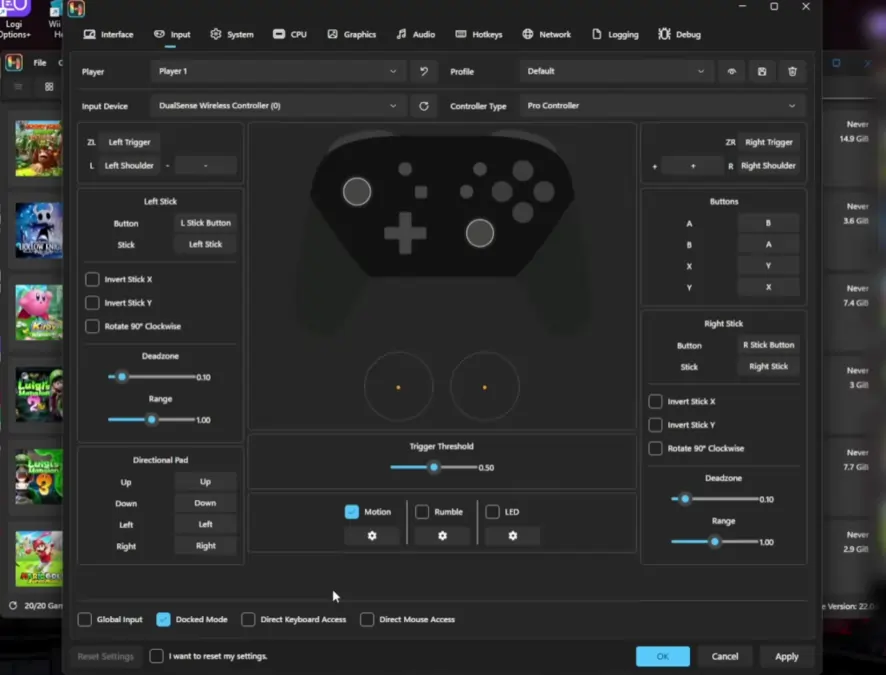
Options → Settings → Input - Choose the controller slot you want to use. Most users set up Player 1.
- Under Input Device, select your controller.
Available options may include:
- Keyboard
- Steam Controller
- Pro Controller
- Xbox Controller
- PlayStation Controller
- Generic gamepads
- Click each button in the control list.
- Press the matching button on your controller. This will connect the controls correctly.
- Adjust analog stick sensitivity if needed.
- Click Apply and then OK to save your settings.
If you are new to the emulator, follow the Ryujinx PC setup guide. It covers the complete installation process.
Also Read: Ryujinx Canary vs Ryujinx
Steam Deck Apply and OK Fix
Some Steam Deck users cannot press Apply or OK in Gaming Mode.
To fix this problem:
- Open the Steam keyboard using: Steam + X
- Press Tab until Apply or OK is highlighted.
- Press Enter.
Steam Deck Controller Setup
Steam Deck users should follow these steps:
- Use the x64 AppImage version of Ryujinx Canary
- Right-click the AppImage and select “Add to Steam”
- Set Input Device to “Steam Controller”
- Enable Docked Mode for higher resolution and better performance
Many users report smooth gameplay with these settings. Touchscreen controls usually work better in Desktop Mode. Physical controls usually work best in Gaming Mode.
For better graphics and performance on Steam Deck, check these visual improvement settings.
Also Read: Ryujinx Canary Troubleshooting Guide: Fixing Common Errors
Motion Controls Setup
Ryujinx supports motion controls such as gyro aiming.
Supported controllers include:
- Switch Pro Controller
- DualSense Controller
- Joy-Cons
- Other gyro-supported controllers
How to Enable Motion Controls
- Connect a controller with motion support.
- Optional tools include BetterJoy for Joy-Cons, or Steam Input for Steam Deck and other controllers.
- Open Options → Settings → Input.
- Enable Motion controls.
- Adjust motion sensitivity if needed.
Steam Deck users can also use the built-in gyro through Steam Input.
Also Read: Ryujinx Canary Cheats Guide: How to Install and Use Cheats
Common Controller Problems
Here are the most frequent controller issues in Ryujinx Canary and quick fixes:
| Problem | Solution |
|---|---|
| Controls are not working | Make sure the correct Input Device is selected. Restart the emulator if needed. |
| Apply or OK buttons do not work | Use the Steam keyboard and Tab key method. |
| Controls feel slow or reversed | Adjust deadzone and sensitivity settings. |
| Touchscreen does not work | This can happen in Gaming Mode. Desktop Mode usually works better. |
| Controller is not detected | Reconnect the controller or restart the Steam Deck or PC. |
Graphics Tip
If controls feel strange during gameplay, try changing the graphics backend.
Go to Options → Settings → Graphics and switch between Vulkan and OpenGL.
Final Recommendations
Ryujinx Canary gives users many controller and input options.
Steam Deck users often get the best experience by using:
- x64 AppImage version
- Steam Input
- Steam Controller setting
Keep Ryujinx Canary updated because newer versions often improve controller support and motion accuracy.
With the correct setup, users can enjoy smooth controls, motion support, and better gameplay in Nintendo Switch games.
Also Read > Ryujinx Crashing When Starting a Game? Here’s How to Fix It
Extra Tips for Better Gameplay
If a game feels slow or controls stop responding, restart Ryujinx Canary before changing many settings. Small problems are often fixed with a quick restart.
Always keep your graphics drivers updated. Old drivers can cause controller delay, motion problems, or game crashes.
Wireless controllers should have enough battery power before playing. Low battery levels sometimes cause connection issues or input lag.
If you use multiple controllers, make sure the correct controller is assigned to Player 1 before starting the game.
Users who play docked on a TV may prefer higher resolution settings. Handheld players may get smoother performance with lower settings.
Save a backup of your controller profile after finishing setup. This makes it easier to restore settings after emulator updates or fresh installations.
Testing controls before starting a long game session can help avoid problems later.
Also Read: How to Add Games in Ryujinx
Many players also create separate controller profiles for different games. Racing games, motion games, and action titles can feel better with custom sensitivity settings. Taking minutes to adjust controls can improve comfort and make gameplay feel natural overall.