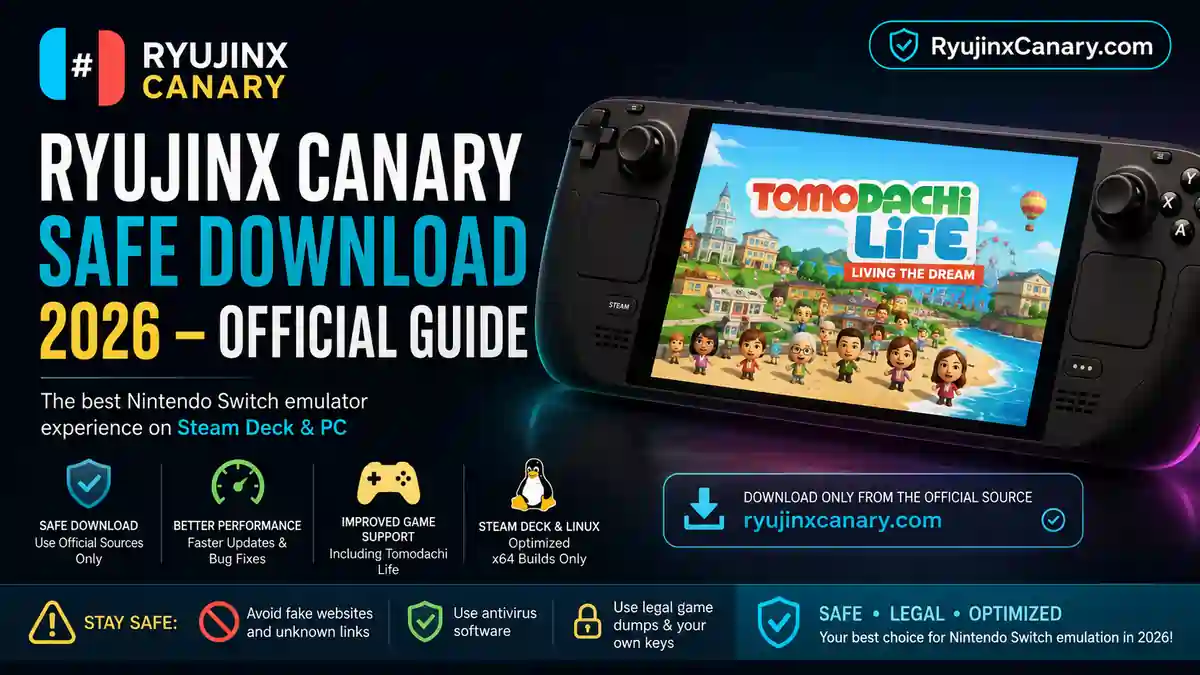
Ryujinx Canary is a test version of the popular open-source Nintendo Switch emulator called Ryujinx. It is maintained through the Ryubing fork. This version gets updates more often than the Stable version.
Many users choose Canary because it gives better performance, faster bug fixes, and improved game support. Steam Deck users especially use it for games like Tomodachi Life: Living the Dream.
If you’re new to the emulator, check the Ryujinx Stable vs Canary Performance guide. It explains the main differences between both versions.
Even so, safety is important. Users should be careful about where they download the emulator, how they install it, and how they manage files.
Also Read: Ryujinx Canary Cheats Guide: How to Install and Use Cheats
Is Ryujinx Canary Safe to Use?
Yes. Ryujinx Canary is usually safe when downloaded from official sources. The emulator is open-source and supported by the community.
The biggest danger comes from fake websites and unofficial downloads. Some third-party sites may include malware, modified files, or crypto miners.
Important Safety Rules
- Download only from the official Ryubing Canary download page: ryujinxcanary.com
- Avoid random Google search results, fake mirror websites, and unknown Discord links.
- Use trusted antivirus software like Windows Defender or Malwarebytes.
- Steam Deck and Linux users should use x64 builds only.
Safe Download and Installation
Download the Correct Version
Go to the official download page and download the version for your system.
- Steam Deck / Linux: x64 AppImage or .tar.gz
- Windows: Windows x64 .zip
- macOS: Universal .app.tar.gz
Also Read: Ryujinx Canary Safety Guide
First-Time Setup
These steps help avoid crashes and setup problems.
- Place the AppImage in an easy-to-find folder like ~/Applications on Steam Deck.
- Delete or rename the old ~/.config/Ryujinx folder if you used Ryujinx before.
- Start the emulator.
- Add prod.keys and title.keys to the ~/.config/Ryujinx/system folder. If you need assistance, follow our Ryujinx Prod Keys Guide.
- Install firmware from: Tools → Install Firmware
- Use firmware version 22.0.0 or newer.
Adding Games
Add your legally dumped game folders through:
Options → Settings → Game Directories
If you’re not sure how to set up game folders, check out How to Add Games in Ryujinx. It explains the process step by step.
Steam Deck users can right-click the AppImage and choose “Add to Steam” for Gaming Mode support.
Helpful Tip
Many users report good results with Canary versions 1.3.277 to 1.3.301 for Tomodachi Life.
Newer Canary builds also fix graphics problems like:
- Black ground
- Missing grass textures
- Visual glitches
Also Read: Ryujinx PC Setup Guide
Legal Information
Emulators are legal in many places. However, you should only use games, keys, and firmware from your own Nintendo Switch.
Downloading ROMs or keys from third-party websites may break copyright laws in some regions.
This guide does not provide copyrighted files.
Also Read: How to Install DLC and Updates in Ryujinx / Ryubing Emulator
Common Problems and Fixes
| Problem | Solution |
|---|---|
| Emulator does not open | Rename the ~/.config/Ryujinx folder and create a fresh setup. |
| Missing keys or firmware | Check that the files are inside the correct system folder. |
| Game crashes or black screen | Change the Graphics Backend between Vulkan and OpenGL. Additional tweaks can be found in our Graphics Enhancements Guide. |
| Controls do not work in Gaming Mode | Set the Input Device to Steam Controller. For more configuration tips, see our Ryujinx Input Guide. Use the Tab + Steam Keyboard method for Apply and OK buttons. |
| EmuDeck conflict | Update the parser executable path to your Canary AppImage. |
| Performance on Steam Deck | Ryujinx Canary often runs newer games better than the Stable version. Because Canary is an experimental build, small bugs or crashes may still happen sometimes. |
| Need more help? | Visit our Ryujinx Troubleshooting Guide for additional solutions and fixes. |
Also Read: Ryujinx PC Setup Guide
Why Many Users Trust Ryujinx Canary
The Ryubing fork has kept the emulator active after changes to the original project.
Many Steam Deck users have installed and used Ryujinx Canary successfully.
To stay safe:
- Download only from official sources
- Keep your system updated
- Use legal game dumps
Final Recommendation
For Steam Deck users who want better Tomodachi Life performance and proper textures, Ryujinx Canary is currently one of the best choices.
Use the x64 AppImage version with firmware 22.1.0 or newer for the best experience.
Always use official download sources to avoid malware and fake files.
Also Read > Ryujinx vs Yuzu vs Eden: Best Nintendo Switch Emulators